Email is one of those places where automation needs a seatbelt.
A draft can save time. An automatic send button can create a very exciting afternoon for all the wrong reasons.
This n8n professional email builder workflow helps turn rough bullets into clear email drafts while keeping the final send button under human control.
It creates subject options, tone variants, follow-up ideas, and review flags so you can polish the message before it leaves your hands.
This is Workflow 9 in the GetPrompting Free n8n Workflow Library. It teaches safe drafting: useful AI assistance without handing over the final decision.
rough bullets -> tone rules -> email draft -> review flags -> manual send
Quick Copy
Professional Email Prompt
Use this manually before wiring the full workflow. If the prompt helps by hand, it is worth automating.
You are drafting a professional email from rough notes.

Email goal:
[WHAT THIS EMAIL SHOULD DO]

Recipient context:
[WHO THIS IS FOR]

Rough bullets:
[PASTE NOTES]

Tone:
[FRIENDLY, DIRECT, FORMAL, ETC.]

Boundaries:
[WHAT NOT TO PROMISE OR SAY]

Return:
- subject options
- primary draft
- shorter version
- warmer version
- follow-up draft
- commitments to review
- human review note
What the Professional Email Builder Does
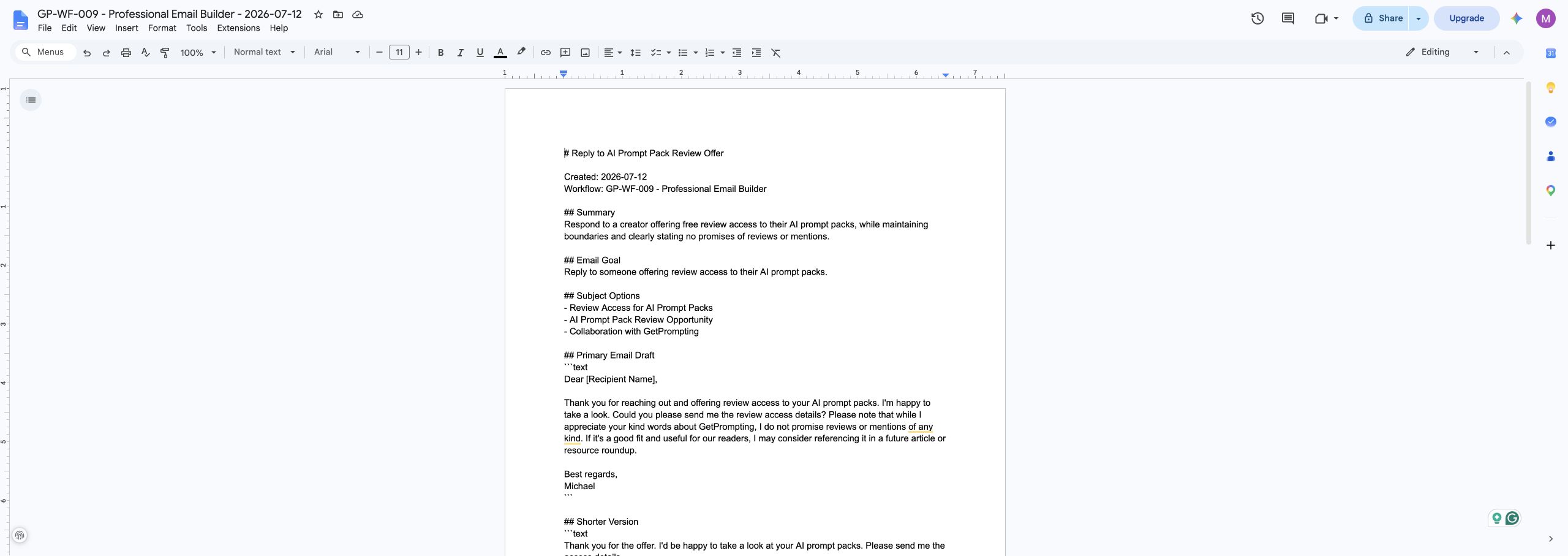
The workflow takes email goal, recipient context, rough bullets, sender name, recipient name, tone, desired length, must-include items, and boundaries and turns them into a Google Doc with subject options, a primary email draft, shorter and warmer versions, follow-up draft, boundaries, review flags, and next steps.
The important part is not that the workflow is complicated. It is that the workflow creates a real document you can review, edit, and use. That is what separates a practical automation from a fun demo.
Why This Workflow Matters
This workflow teaches safe drafting. The workflow writes email drafts, but it does not send them. That boundary matters when automation touches communication.
This matters because beginners often try to automate the exciting part first. They jump straight to agents, dashboards, and complicated branching logic before the core pattern is reliable. I like starting smaller. Make one useful thing work. Then make it better.
That approach is slower for about five minutes and faster for everything after that. Once the base workflow is understandable, you can change the model, destination, trigger, or output format without rebuilding from scratch.
What You Need Before You Build It
The version I built uses n8n, Ollama, a local chat model, and Google Docs. You can change those pieces later, but this setup makes the workflow easy to inspect and test.
- n8n running locally, self-hosted, or in n8n Cloud
- Ollama running locally if you want the local AI version
- a local chat model such as
llama3.1:8b, or another model your machine runs reliably - a Google account
- Google Docs credentials connected inside n8n
Download the Free n8n Workflow
I published the clean workflow export on GitHub so you can import it, inspect it, and adapt it to your own setup.
Download the Professional Email Builder workflow on GitHub
The repo includes the n8n workflow JSON, screenshots, sample input, sample output, installation notes, customization ideas, and troubleshooting docs.
The public export does not include my private credentials, OAuth tokens, workflow IDs, API keys, or account details. After importing it, you will still need to connect your own Google Docs credential inside n8n.
How This n8n Professional Email Builder Workflow Works
Here is the practical flow:
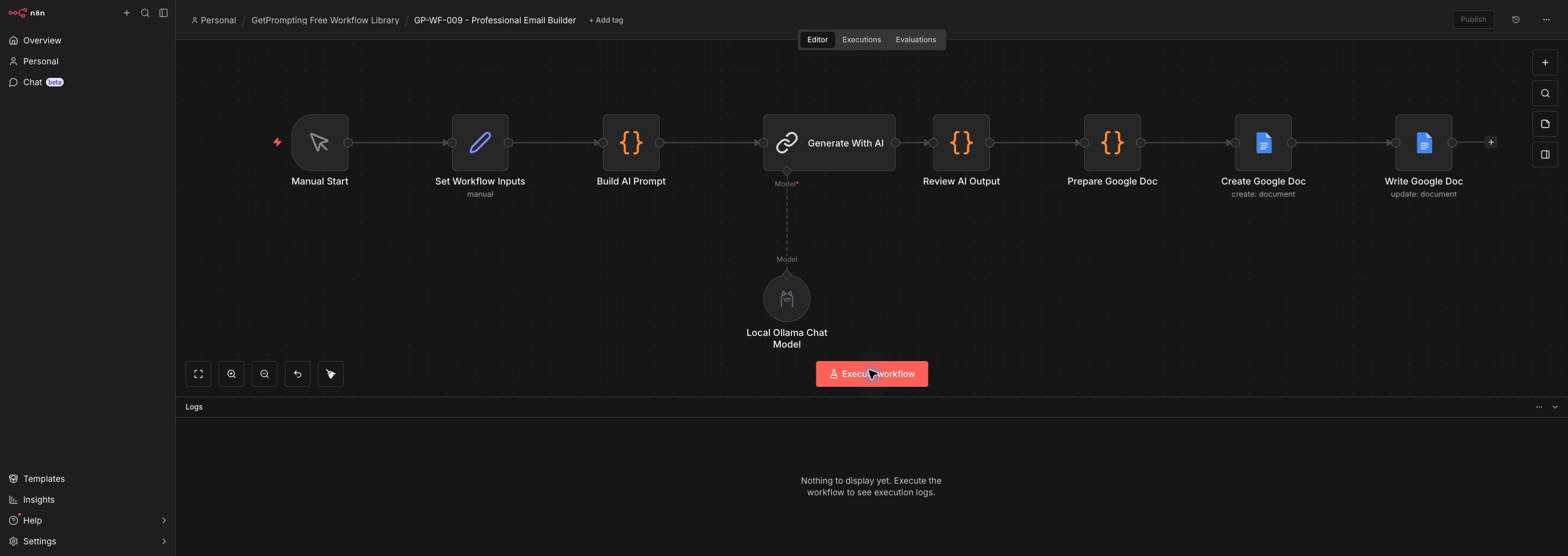
Manual Start -> Set Workflow Inputs -> Build AI Prompt -> Generate With AI -> Review AI Output -> Prepare Google Doc -> Create and Write the Google Doc
Let us walk through the main pieces.
1. Manual Start
Manual start is important because email should stay under human control.
2. Set Workflow Inputs
This node stores the email goal, recipient context, rough bullets, sender details, tone, must-include items, and boundaries.
3. Build AI Prompt
The prompt asks for drafts and review flags, not a sent message.
4. Generate With AI
The model turns rough bullets into subject options and draft versions.
5. Review AI Output
The review step keeps commitments, tone, and follow-up notes visible.
6. Prepare Google Doc
This turns the draft into a document you can edit before using it.
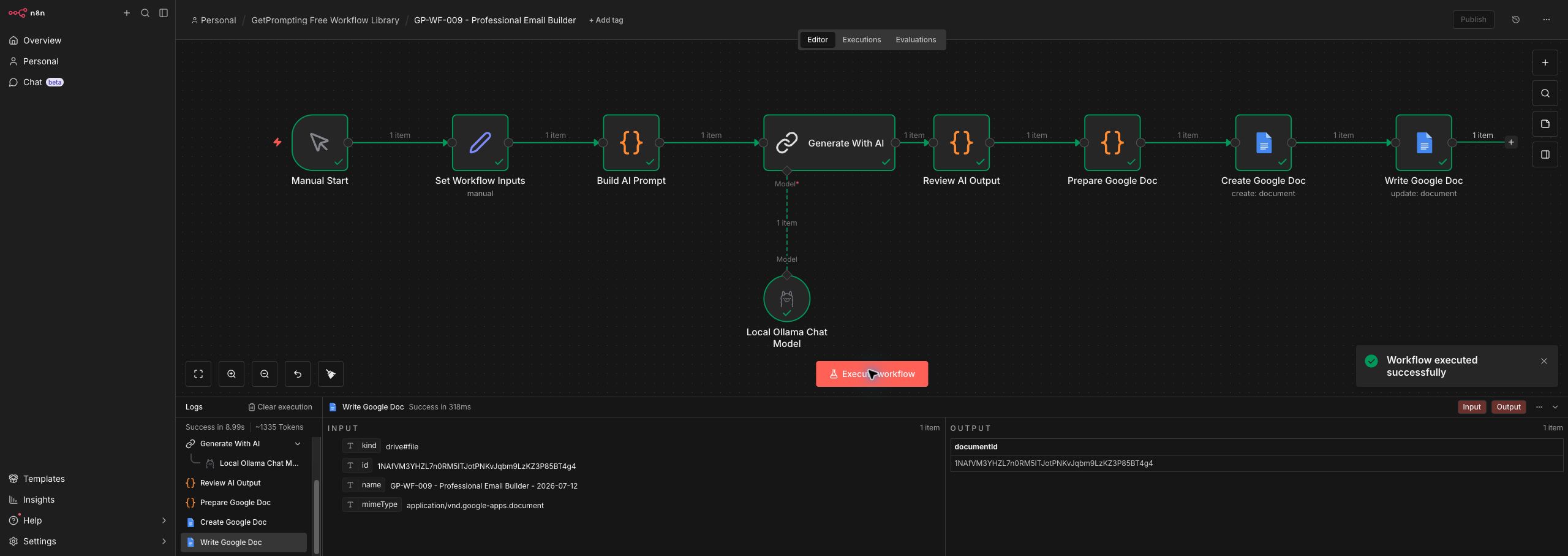
7. Create and Write the Google Doc
The final output is a safe draft package, not an automated send.
The New Concept This Workflow Teaches
This workflow teaches safe drafting. The workflow writes email drafts, but it does not send them. That boundary matters when automation touches communication.
That concept is the reason this article exists as its own piece instead of being a copy of the previous workflow guide. Each workflow in the library should add a useful idea you can carry into future builds.
Once you understand this pattern, you can reuse it in other workflows. The exact topic changes, but the habit stays the same: define the input, give the model a clear job, review the output, and send the result somewhere useful.
How to Customize This Workflow
The GitHub version is intentionally simple. That is a feature, not a limitation. A simple workflow is easier to understand, modify, and trust.
Change the Inputs
Open the Set Workflow Inputs node and replace the sample values with your own email goal, recipient context, rough bullets, sender name, recipient name, tone, desired length, must-include items, and boundaries. If you use this often, you can replace the manual fields with a form, webhook, Google Sheet row, Obsidian note, or Notion database item.
Change the Model
The default version uses a local Ollama model. Smaller models are usually faster and cheaper to experiment with. Larger models may follow complex instructions better, but they can be slower and more memory hungry.
You can also swap the local model for a cloud model through n8n if the workflow needs stronger reasoning. I would still keep the review step, because better models are not the same thing as perfect models.
Change the Output Destination
Google Docs is a friendly first destination because it is easy to read and edit. But you can point the same pattern to Obsidian, Notion, Airtable, Google Sheets, a local Markdown file, a task manager, or a custom dashboard.
Upgrade It Later
- Save approved drafts in Gmail or Zoho as drafts.
- Add a tone selector from a form.
- Route different email types into different templates.
- Add a compliance or promise-check section for client emails.
Common Mistakes to Avoid
Automating the send button too early
Drafting is useful. Sending requires more trust and stronger guardrails.
Forgetting boundaries
Tell the workflow what not to promise before it writes the email.
Skipping recipient context
A good email depends on who is receiving it and what relationship already exists.
Where This Fits in a Bigger AI Workflow System
The Professional Email Builder is small on purpose, but it fits into a larger practical workflow system. It can sit beside the Daily Action Brief Builder, the Search Intent Blog Outline Builder, and the rest of the free n8n workflow library as one reusable tool in a larger process.
That is the real value of building these workflows one at a time. You are not just collecting templates. You are learning patterns: cleanup, planning, triage, structure, review, repurposing, documentation, and knowledge management.
Those patterns compound. A small workflow that solves one clear problem today can become a building block for a much more useful system later.
Where this fits: this workflow is one practical piece of the larger AI workflows approach, where AI helps prepare an output but a person still owns the final review before anything gets sent.
Final Thoughts
The Professional Email Builder is not impressive because it is massive. It is useful because it gives one messy problem a clear path from input to output.
That is the kind of automation worth learning. It respects the human part of the work while using AI to handle the structure, cleanup, and first-pass organization.
If you want to experiment with it, download the free workflow from GitHub, import it into n8n, run the sample input once, and then replace the sample with something from your own work.
Start small. Make it useful. Then improve one piece at a time.
Stay sharp,
Michael
Creator of GetPrompting.com
Keep Building the Workflow Library
This guide is part of the Free n8n Workflow Library, a set of small n8n builds designed to be imported, inspected, and customized one workflow at a time. If you want the previous step in the series, read Social Post Generator. The next build is Markdown Knowledge Base Builder, which adds another practical pattern without turning the system into one giant automation.
Next step
Ready to adapt this workflow?
Use the guide as a reference build, then decide whether to test it yourself or map the safer version for your own stack.
Open the GitHub repository, inspect the workflow export, and test one change at a time before trusting it with real work.
Open GitHub repoIf this needs to fit your CRM, content process, reporting setup, or local tools, a focused review can surface weak spots before you rebuild.
Ask Michael to review it