Most n8n workflow demos stop too early.
They show a few nodes on a canvas, maybe pass data from one tool to another, and then call it a day. That can be useful when you already know what you are doing, but it leaves beginners with the most important question unanswered:
What did the workflow actually create that I can use?
That is why I built the Daily Action Brief Builder, a simple n8n workflow that takes messy working notes, uses AI to organize them, and saves the result as a clean Google Doc.
It is not a giant assistant. It is not a massive productivity system. It is one practical workflow that teaches a reusable pattern:
messy input → AI cleanup → reviewed structure → useful output
Once you understand that pattern, you can send the output almost anywhere: Google Docs, Notion, Obsidian, email drafts, a task manager, a content calendar, or your own command center dashboard.
If you want the bigger strategy behind that pattern, my AI workflows guide explains how inputs, context, models, review, and outputs fit together.
If you want more examples after this one, I also keep a free n8n workflow library with beginner-friendly workflow exports you can download, inspect, and customize.
If you are brand new to n8n, start with my What Is n8n? guide first. If you are still getting comfortable with local models, read What Is Ollama? and Local AI for Beginners. This article assumes you have the basics running and want to build something useful with them.
Quick Copy
Daily Action Brief Prompt
Use this prompt as a manual test before wiring the full workflow. If the output is useful by hand, it is worth automating.
You are helping turn messy working notes into a clean action list.

Context:
[WHAT KIND OF NOTES ARE THESE?]

Messy notes:
[PASTE YOUR MESSY NOTES HERE]

Return ONLY valid JSON with this exact shape:
{
  "summary": "One short plain-English summary of what these notes are about.",
  "action_items": [
    {
      "task": "Clear action written as a task someone can do.",
      "priority": "Assign High, Medium, or Low",
      "category": "Content | SEO | Social | Admin | Product | Follow-up | Other",
      "next_step": "The immediate next step the user can personally take.",
      "status": "Review"
    }
  ],
  "not_now": ["Things mentioned but not worth doing immediately."],
  "review_note": "Short reminder about what a human should check before acting."
}
What This n8n Workflow Does
The workflow starts with a rough note. That note can be messy because the workflow is designed for real life, not perfectly formatted demo content.
For example, the sample input looks like something you might write in the middle of a busy work session:
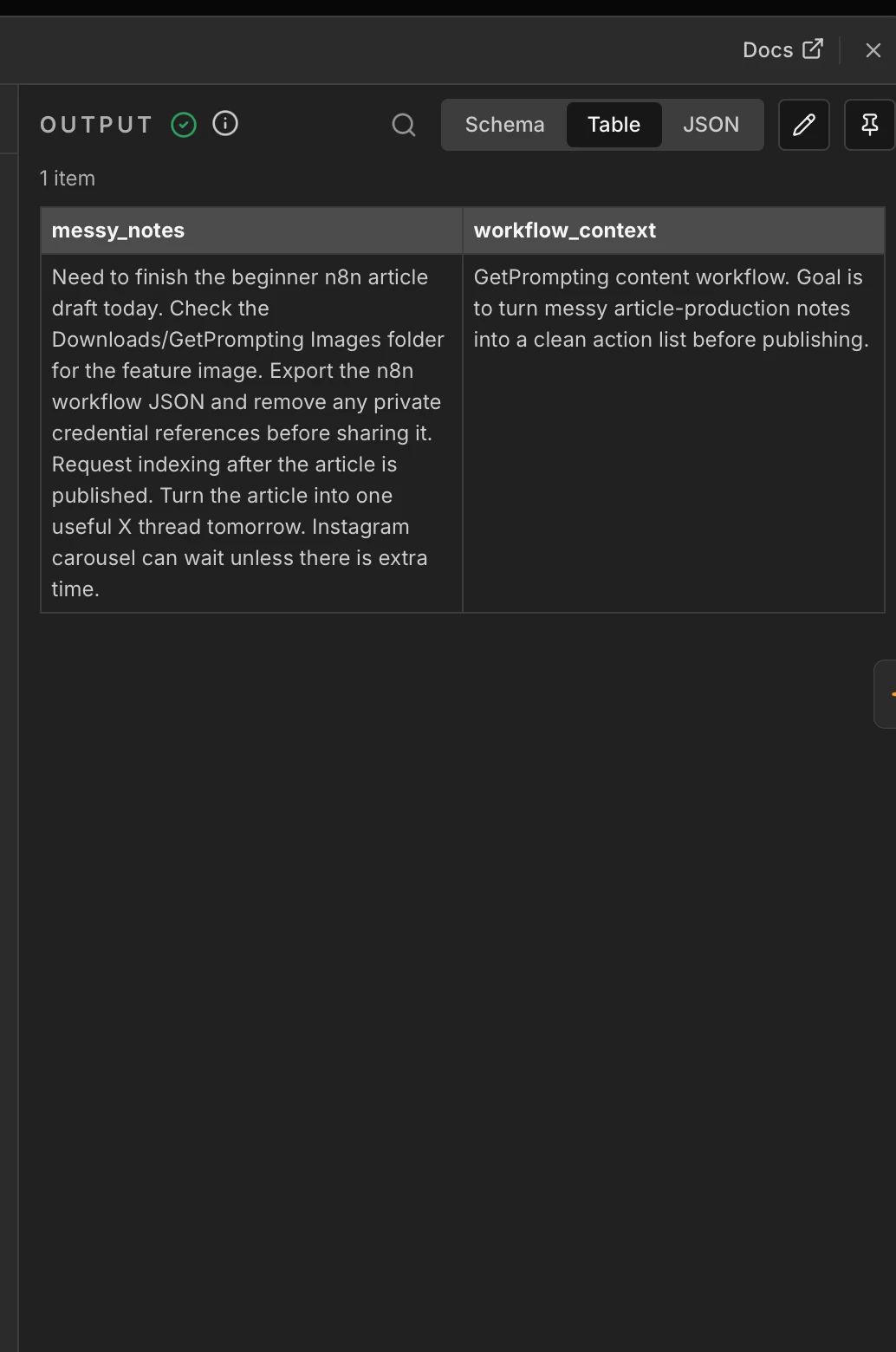
Need to finish the beginner n8n article draft today. Check the Downloads/GetPrompting Images folder for the feature image. Export the n8n workflow JSON and remove any private credential references before sharing it. Request indexing after the article is published. Turn the article into one useful X thread tomorrow. Instagram carousel can wait unless there is extra time.
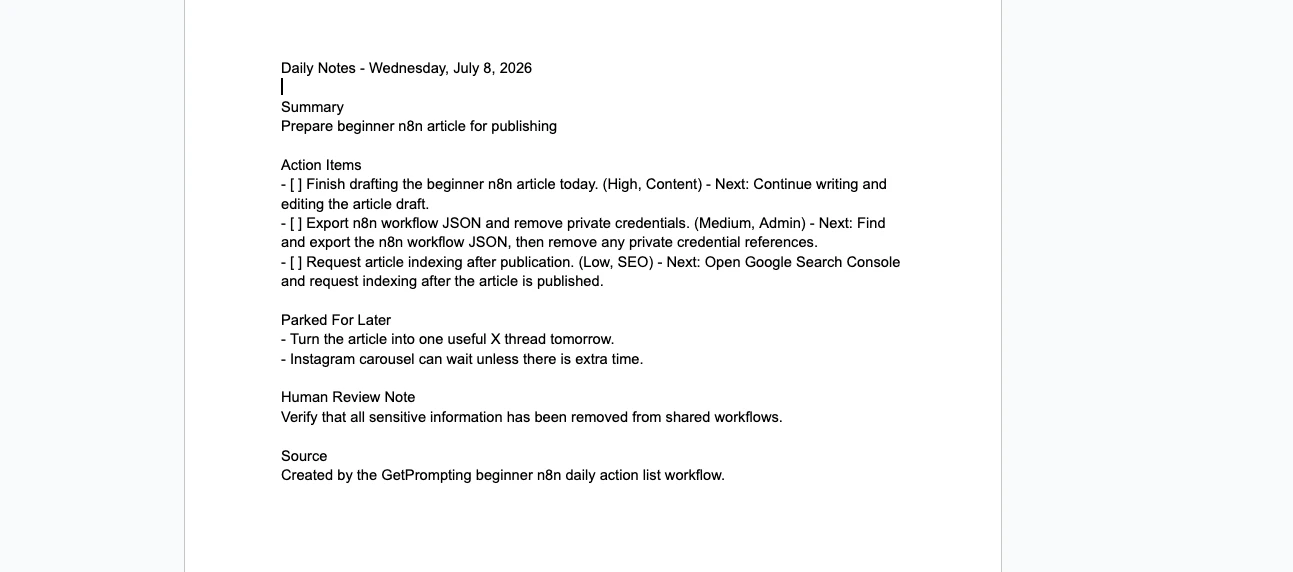
The workflow sends that note to a local AI model, asks for structured JSON, checks the response, formats the result, creates a dated Google Doc, and writes the finished brief into it.
The output is a real document you can open, edit, and use. That matters because the goal of automation is not to admire a successful execution log. The goal is to create something that helps you move.
Why This Is a Strong Beginner n8n Workflow
A good beginner workflow should teach a useful pattern without burying you in complexity.
This one works because the problem is familiar. Most people have notes scattered across tabs, documents, messages, notebooks, and task apps. The hard part is not always capturing the idea. The hard part is turning the idea into a clean next step before it disappears into the pile.
The Daily Action Brief Builder teaches several important automation skills at once:
- how to pass text between n8n nodes
- how to use an AI model inside a workflow
- how to ask AI for structured JSON instead of loose text
- how to parse and normalize the AI response
- how to create a tangible output in Google Docs
- how to think about future workflow destinations
That is a lot of learning from one small project, but it still stays readable. You can open the workflow, follow the nodes from left to right, and understand what each piece is doing.
Affiliate disclosure: If you use the n8n Cloud link below, GetPrompting may earn a commission at no additional cost to you.
Need somewhere to run this workflow? If you do not already have an n8n workspace, n8n Cloud is the easiest hosted option. Prefer self-hosting or local testing? Use the Docker setup guide.
What You Need Before You Build It
The version I built uses n8n, Ollama, a local chat model, and Google Docs. You can change those pieces later, but this setup keeps the first version practical and easy to test.
You need:
- n8n running locally, self-hosted, or in n8n Cloud
- Ollama running on your computer if you want the local AI version
- a local chat model such as
llama3.1:8bor another model your machine can handle - a Google account
- a Google Docs OAuth credential connected inside n8n
If you are still choosing where to run n8n, my n8n setup guide walks through local, cloud, and self-hosted options.
Download the Free n8n Workflow
I published the clean n8n workflow export on GitHub so you can import it, inspect it, and modify it for your own setup.
Download the Daily Action Brief Builder workflow on GitHub
The repo includes the n8n workflow JSON, screenshots, sample input, sample output, installation notes, customization ideas, and troubleshooting docs.
The public export does not include my private credentials, OAuth tokens, workflow IDs, or account details. You will still need to connect your own Google Docs credential after importing it into n8n.
How the Workflow Works
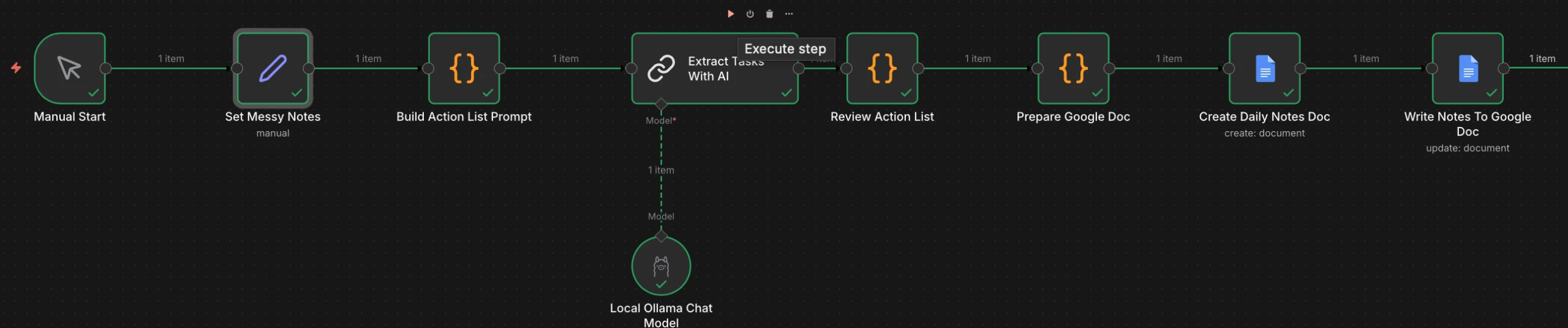
Here is the simple version of the flow:
Manual Start → Set Messy Notes → Build Prompt → Local AI Model → Extract Tasks → Review Output → Prepare Google Doc → Create Document → Write Document
Let’s walk through the main pieces.
1. Manual Start
The workflow starts manually. That is intentional.
When you are learning automation, it helps to remove extra triggers until the core workflow works. A schedule trigger, webhook, or form input can come later. First, you want to prove that the workflow can turn messy notes into a useful brief.
2. Set Messy Notes
This node stores two fields:
messy_notesworkflow_context
The messy notes are the raw material. The workflow context tells the model what kind of notes it is organizing.
This is a small detail that makes a big difference. “Clean up these notes” is vague. “These are GetPrompting content production notes, prioritize publishing tasks and SEO cleanup” gives the model a much better target.
3. Build Action List Prompt
This code node builds the prompt that gets sent to the AI model.
The important part is that it asks the model to return only valid JSON. That makes the next step easier because n8n can parse predictable data instead of trying to interpret a paragraph that changes every time.
This is one of the most useful habits you can build when using AI inside automations:
If another tool needs to use the response, ask for structure.
4. Local Ollama Chat Model
The workflow uses a local Ollama model for the reasoning step.
I tested it with llama3.1:8b, but the exact model is less important than the pattern. You want a model that can follow instructions, return structured JSON, and run reliably on your machine.
For simple note cleanup, you do not always need the largest model available. A smaller local model is often enough, especially if your prompt is clear and your output format is simple.
5. Extract Tasks With AI
This node sends the prompt to the local model and receives the response.
The model is asked to return a summary, action items, parked ideas, and a review note. That gives the workflow more than a generic summary. It creates a small decision layer: what matters now, what can wait, and what should a human double-check?
6. Review Action List
This code node parses the AI response and normalizes the action items.
This step is worth having because AI output is not magic. Even with a strict prompt, you want a cleanup layer before sending the result somewhere important.
Think of this node as the workflow saying, “Great, but let’s make sure this is usable before we write it into a document.”
7. Prepare Google Doc
This node turns the structured data into a readable document body.
It creates a title like:
Daily Notes 2026-07-08Then it formats the summary, action items, parked ideas, review note, and source note into plain text.
8. Create and Write the Google Doc
The final two nodes create the Google Doc and insert the finished brief.
This is where the workflow becomes more than an AI experiment. It leaves you with an actual document you can use.
Why the Output Destination Matters
One of the biggest mistakes in beginner AI automation is stopping at the AI response.
The model says something useful, everyone nods, and then the output sits in a chat window or an execution panel forever. That is not a workflow yet. That is a nice answer looking for a home.
A good workflow should send the result somewhere you already work.
Google Docs is a friendly first destination because it is easy to read, edit, share, and archive. But this same workflow pattern can point to several other places.
Send It to Notion
If you use Notion as your planning system, the workflow could create a database item instead of a Google Doc. The action items could become properties, and the summary could become the page body.
This works well if you already manage projects, content calendars, or personal dashboards in Notion.
Send It to Obsidian
If you prefer local-first notes, Obsidian is a strong option. Instead of writing to Google Docs, the workflow could create a markdown file inside your vault.
That version would be especially useful for daily notes, research logs, content planning, or a personal knowledge base. It also keeps the final output in plain text, which is easier to search, back up, and reuse later.
Send It to a Task Manager
If the action items are the main value, you could send them to Todoist, Trello, ClickUp, Linear, Jira, or a custom taskboard.
This changes the workflow from “make me a daily brief” to “turn my messy notes into tasks I can track.” Same pattern, different destination.
Send It to Email or Slack
For teams, the workflow could send the daily brief to email or Slack after a human review step.
I would not make that fully automatic at first. Notes often need judgment. But a reviewed daily brief can be a useful team update, especially for project coordination, content operations, or client work.
How to Upgrade This With Cloud LLMs
The free workflow uses a local Ollama model, but you can absolutely swap in a cloud LLM if that makes more sense for your setup.
There is no single correct answer here. Local AI and cloud AI have different strengths.
Use a Cloud Model When You Want Better Reasoning
Cloud models are often better at following complex instructions, handling messy edge cases, and returning cleaner structured output. If your notes are long, chaotic, or mixed with multiple projects, a stronger cloud model may perform better.
In n8n, you could replace the Ollama chat model with an OpenAI, Anthropic, Google Gemini, or OpenRouter-compatible model node depending on your preferred provider.
Use Local AI When Privacy and Cost Matter More
Local AI is attractive when your notes are private, sensitive, or frequent enough that you do not want every test to become an API call.
For personal planning, rough business ideas, daily notes, and draft thoughts, local AI is often good enough. And good enough is a perfectly respectable automation strategy.
Use a Hybrid Setup When You Want the Best of Both
You can also build a hybrid version.
For example, local AI could handle normal daily notes, while a cloud model only gets used when the workflow detects a longer or more complex input. That keeps costs lower while still giving you a stronger model when the task actually needs it.
A simple version of that logic would be:
- short notes go to Ollama
- long notes go to a cloud model
- private notes stay local
- business-safe notes can use the stronger model
That is the point where this stops being only a beginner workflow and starts becoming a real decision system.
Ways to Customize This Workflow
The GitHub version is intentionally simple, but the pattern is flexible. Once the base workflow runs, you can adapt it to fit how you actually work.
Add a Form Trigger
Instead of editing the sample note inside n8n, you could create a form where you paste your messy notes. That would make the workflow feel more like a small app.
This is a good upgrade if you want to use the workflow often without opening the n8n editor every time.
Add a Schedule Trigger
You could run the workflow every morning or at the end of the workday.
For example, a nightly version could collect notes from the day and prepare tomorrow’s brief. A morning version could turn yesterday’s capture pile into a focused starting point.
Add Multiple Categories
The current workflow uses categories like Content, SEO, Social, Admin, Product, Follow-up, and Other.
You can change those to match your work. A student might use Reading, Assignment, Research, Admin, and Exam Prep. A consultant might use Client Work, Follow-up, Proposal, Delivery, and Internal.
Add Human Approval Before Sending Anywhere Public
This workflow writes to a private Google Doc, so it is low risk. If you adapt it to send email, Slack messages, client updates, or public posts, add a review step.
AI is helpful. It is not the boss of the send button.
Common Mistakes to Avoid
Trying to Automate Too Much at Once
It is tempting to turn this into a full assistant immediately. I get it. Once a workflow starts working, your brain begins adding buttons, branches, dashboards, and maybe a dramatic theme song.
Resist that at first.
Make the simple version reliable. Then add one upgrade at a time.
Skipping the Manual Test
Before you automate the prompt, test it manually. Paste a few messy notes into your model and see whether the output is useful.
If the prompt does not work by hand, automation will only make the bad output arrive faster.
Trusting the AI Output Without Review
This workflow is designed to organize notes, not make final decisions for you.
Always review the final brief. Check priorities, remove anything the model misunderstood, and add missing context where needed.
Sharing Workflow JSON Without Scrubbing It
If you build your own workflow and want to share it, clean the export first.
Remove credential references, private IDs, account names, test data, and anything else that should not be public. The GitHub version of this workflow was scrubbed before release for that reason.
Who This Workflow Is For
This workflow is useful if you:
- capture notes faster than you organize them
- want a practical first n8n project
- are learning how to use AI inside automations
- want to experiment with local AI before paying for APIs
- need a repeatable way to turn rough ideas into action items
It is especially helpful for content creators, students, consultants, freelancers, builders, and anyone who ends the day with a pile of “I should probably do something with this” notes.
Where This Fits in a Bigger AI Workflow System
This workflow is small on purpose, but it points toward something bigger.
A daily action brief can become the starting point for:
- a daily planning system
- a content production workflow
- a personal knowledge management system
- a consulting notes cleanup process
- a meeting-to-action-items workflow
- a lightweight personal assistant
The important thing is that you are not trying to build the entire system on day one. You are building the first reliable piece.
That is how practical AI workflows grow: one useful pattern at a time.
Final Thoughts
The Daily Action Brief Builder is not impressive because it is complicated.
It is useful because it solves a real problem with a clear beginning, middle, and end.
You start with messy notes. You use AI to organize them. You review the structure. You save the result somewhere useful.
That is the kind of automation worth learning.
If you want to build from here, import the free workflow, run it once with the sample note, then replace the sample with your own messy notes. After that, try changing only one thing: the model, the destination, the categories, or the trigger.
Small workflows compound fast when they solve the right problem.
Keep Building the Workflow Library
This workflow belongs to the Free n8n Workflow Library, a set of small n8n builds meant to be imported, inspected, and customized one workflow at a time. The next build is Search Intent Blog Outline Builder, which adds another practical pattern without turning the system into one giant automation.
Next step
Ready to adapt this workflow?
Use the guide as a reference build, then decide whether to test it yourself or map the safer version for your own stack.
Open the GitHub repository, inspect the workflow export, and test one change at a time before trusting it with real work.
Open GitHub repoIf this needs to fit your CRM, content process, reporting setup, or local tools, a focused review can surface weak spots before you rebuild.
Ask Michael to review it